User Guide
Rationale
MediSaveContact is designed for home care nurses who provide care outside traditional hospital settings. The application focuses on quick data entry and retrieval through a command-line interface, making it faster to manage patient information during busy schedules.
Quick start
-
Ensure you have Java 17 or above installed in your computer, following this guide.
-
Download the latest
.jarfile here. -
Copy the file to the folder you want to use as the home folder for your MediSaveContact.
-
For Windows users: Locate MediSaveContact in your file manager and double click on the application.
For Mac/Linux users: Open a command terminal,cd(change directory) into the folder you put the jar file in, and use thejava -jar MediSaveContact.jarcommand to run the application. -
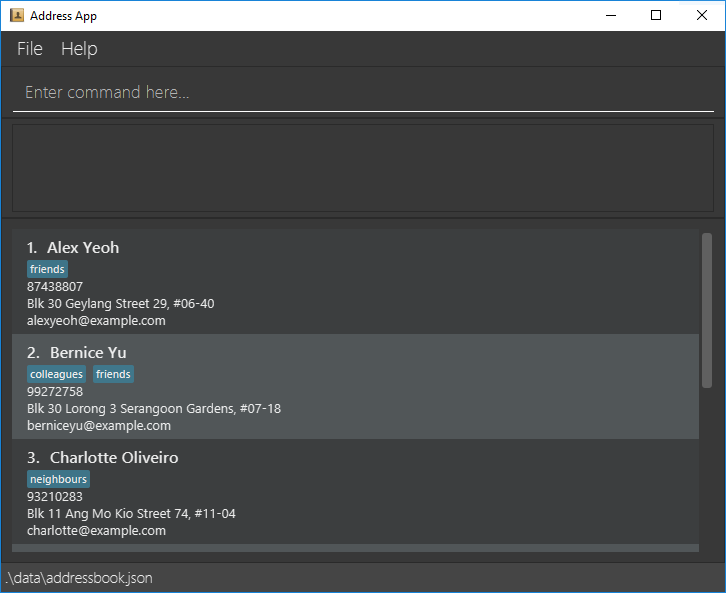
An application similar to the one below should appear in a few seconds. Note how the app contains some sample data.
-
Type the command and press Enter to execute it. e.g. typing
helpand pressing Enter will open the help window.
Some example commands you can try:-
help: Shows all commands available in the application. -
patient n/John Tan p/91234567 a/Blk 123 Clementi Ave 3 tag/high: Adds a patient namedJohn Tanto MediSaveContact. -
deletepatient 3: Deletes the 3rd contact shown in the current list. -
exit: Exits the app.
-
-
Refer to the features below for details of each command.
Features
MediSaveContact provides comprehensive patient management tools including patient records, caretaker contacts, medical notes, and appointment scheduling. The following sections detail each command’s usage, parameters, and validation rules.
Command summary
| Action | Description |
|---|---|
| help | Shows all commands available |
| list | Shows a list of all patients in MediSaveContact |
| patient | Adds a patient to MediSaveContact |
| editpatient | Edits specified patient’s details |
| deletepatient | Deletes specified patient from MediSaveContact |
| caretaker | Adds a caretaker to a specified patient |
| editcaretaker | Edits the caretaker details of a specified patient |
| deletecaretaker | Removes the caretaker from a specified patient |
| note | Adds a note to specified patient |
| editnote | Edits an existing note of a specified patient |
| deletenote | Deletes a note from a specified patient |
| appt | Adds an appointment to specified patient |
| editappt | Edits an existing appointment of a specified patient |
| deleteappt | Deletes an appointment from a specified patient |
| sortappt | Sorts patients by earliest appointment |
| find | Finds patient(s) with name containing specified keyword |
| undo | Undoes the most recent successful command |
| clear | Deletes all patients from MediSaveContact |
| exit | Exits the app |
 Notes about the command format:
-
Words in
UPPER_CASEare the parameters to be supplied by the user.
e.g. inadd n/NAME,NAMEis a parameter which can be used asadd n/John Doe. - Items in square brackets are optional.
e.g.n/NAME [tag/TAG]can be used as:-
n/John Doe tag/High✅ -
n/John Doe✅
-
- Parameters with prefixes can be in any order.
-
n/John Doe tag/high✅ -
tag/high n/John Doe✅
-
-
Extra parameters for commands that do not take in parameters (such as
help,exitandclear) will be ignored.
e.g. if you typeclear 123, it will be interpreted asclear. -
When a compulsory parameter is not provided, an error message regarding the command’s proper usage will appear, and the command will not be executed.
-
When a command accepts an input prefix only once, entering it more than once will show an error about duplicate fields and the command will not be executed.
- If you are using a PDF version of this document, be careful when copying and pasting commands that span multiple lines as space characters surrounding line-breaks may be omitted when copied over to the application.
Viewing help : help
Shows all commands available in the application.
Command Format:
help
Outputs
- Success: A pop-up box like the one below would appear, listing the commands available, and how to use them.

- Failure: Help command would never result in failure
Listing all patients : list
Shows a list of all patients in MediSaveContact, even if it is empty. Tag can also be specified to list only patients with the specified tag.
Command Format:
list [tag/TAG]
Example Commands:
list tag/high
Parameters & Validation Rules
| Parameter | Validation Rules | Error Message if Invalid |
|---|---|---|
| TAG (Optional) | Must be 'low', 'medium', or 'high' only (case-insensitive) | "Invalid tag. Only 'high', 'medium', or 'low' are allowed" |
Outputs
- Success: “Listed all patients” / “Listed all patients with tag: [TAG]”
- Failure: Error messages above
Adding a patient: patient
Adds a patient to MediSaveContact.
Command Format:
patient n/NAME p/PHONE_NUMBER a/ADDRESS [tag/TAG]
Example Commands:
patient n/John Tan p/91234567 a/Blk 123 Clementi Ave 3
patient n/Amy Lee p/82345678 a/456 Bedok North Street 2 tag/medium
Parameters & Validation Rules
| Parameter | Validation Rules | Error Message if Invalid |
|---|---|---|
| NAME / PHONE / ADDRESS | See Person Information Parameters | |
| TAG (Optional) | Must be 'low', 'medium', or 'high' only (case-insensitive) | "Invalid tag. Only 'high', 'medium', or 'low' are allowed" |
Outputs
- Success:
- In GUI: New Patient appears in Patient list
- In Command Feedback Box:
“Patient created: [Name]; Phone: [Phone]; Address: [Address]; Tag: [Tag]”
- Failure: Error Messages above
 Tip:
Patient’s name is auto capitalised (Eg: John doe will be saved as John Doe)
Tip:
Patient’s name is auto capitalised (Eg: John doe will be saved as John Doe)
 Warning:
Persons are duplicates if both name and phone number match (case-insensitive). You cannot add a patient who is already registered as a patient or a caretaker.
Warning:
Persons are duplicates if both name and phone number match (case-insensitive). You cannot add a patient who is already registered as a patient or a caretaker.
Editing a patient : editpatient
Edits an existing patient in MediSaveContact.
Command Format:
editpatient INDEX [n/NAME] [p/PHONE] [a/ADDRESS] [tag/TAG]
Example Commands:
editpatient 1 p/91234567
editpatient 2 n/Betsy Crower tag/
Parameters & Validation Rules
| Parameter | Validation Rules | Error Message if Invalid |
|---|---|---|
| INDEX | See Index Parameter | |
| NAME / PHONE / ADDRESS / TAG | At least one of these parameters must be present | "At least one field to edit must be provided." |
| See Person Information Parameters | ||
Outputs
- Success:
- In GUI: Edited Patient appears in Patient list
- In Command Feedback Box:
“Patient edited: [Name]; Phone: [Phone]; Address: [Address]; Tag: [Tag]”
- Failure: Error messages above
Tip:
You can remove the patient’s tag by typing tag/ without
specifying any tag after it.
Deleting a patient: deletepatient
Deletes a patient at a specified index from the address book. The index refers to the index number shown in the displayed person list.
Command Format:
deletepatient INDEX
Example Commands:
deletepatient 1
Parameters & Validation Rules
| Parameter | Validation Rules | Error Message if Invalid |
|---|---|---|
| INDEX | See Index Parameter | |
Outputs
- Success:
- In GUI: Patient removed from Patient list
- In Command Feedback Box: “Patient [Name]; Phone: [Phone] deleted.”
- Failure: Error messages above
Tip:
Run list command to view all patients.
Adding a caretaker : caretaker
Links a caretaker to a patient so their emergency contact information is tracked together with the patient record.
Command Format:
caretaker INDEX n/NAME p/PHONE [a/ADDRESS] r/RELATIONSHIP
Example Commands:
caretaker 1 n/John Doe p/98765432 a/311 Clementi Ave 2 #10-05 r/Father
caretaker 3 n/Alice Tan p/81234567 r/Home Nurse
Parameters & Validation Rules
| Parameter | Validation Rules | Error Message if Invalid |
|---|---|---|
| INDEX | See Index Parameter | |
| Target patient must not already have a caretaker | "The patient at index X already has a caretaker." | |
| NAME / PHONE | See Person Information Parameters | |
| ADDRESS (Optional) | ||
| RELATIONSHIP | Cannot be blank | "Relationship cannot be blank." |
Outputs
- Success:
- In GUI: Caretaker displayed in the selected patient card
- In Command Feedback Box:
“Caretaker created: [Caretaker details]
For [Name]; Phone: [Phone]”
- Failure:
- Error messages above
Tip:
Omit the caretaker’s address if the caretaker has the same address as their patient! MediSaveContact will copy the address for you.
Warning:
Caretaker contact details must be unique. If the caretaker already exists as a patient entry, they might not feel well enough to act as a caretaker.
Editing a caretaker : editcaretaker
Updates the caretaker information linked to a patient.
Command Format:
editcaretaker INDEX [n/NAME] [p/PHONE] [a/ADDRESS] [r/RELATIONSHIP]
Example Commands:
editcaretaker 1 p/91234567
editcaretaker 2 n/Jane Ong r/Sister
Parameters & Validation Rules
| Parameter | Validation Rules | Error Message if Invalid |
|---|---|---|
| INDEX | See Index Parameter | |
| Target patient must already have a caretaker | "The patient at index X does not have a caretaker." | |
| NAME / PHONE / ADDRESS / RELATIONSHIP | At least one of these parameters must be present | "At least one field to edit must be provided." |
| NAME / PHONE / ADDRESS | See Person Information Parameters | |
| RELATIONSHIP | Cannot be blank | "Relationship cannot be blank." |
Outputs
- Success:
- In GUI: Caretaker details updated for the selected patient
- In Command Feedback Box:
“Caretaker edited: [Updated caretaker details]
For [Name]; Phone: [Phone]”
- Failure:
- Error messages above
Tip:
You can change a caretaker’s address to be the same as their patient’s by typing a/ without specifying any address after it.
Deleting a caretaker : deletecaretaker
Removes the caretaker that is currently linked to a patient.
Command Format:
deletecaretaker INDEX
Example Command:
deletecaretaker 2
Parameters & Validation Rules
| Parameter | Validation Rules | Error Message if Invalid |
|---|---|---|
| INDEX | See Index Parameter | |
| Target patient must already have a caretaker | "The patient at index X does not have a caretaker." | |
Outputs
- Success:
- In GUI: Caretaker removed from the patient card
- In Command Feedback Box:
“Caretaker deleted.
For [Name]; Phone: [Phone]”
- Failure:
- Error messages above
Note:
If you delete a caretaker by mistake, use the undo command immediately to restore the previous state.
Adding a note : note
Adds a note to a patient’s record for tracking medical observations, treatment updates, or other important information.
Command Format:
note INDEX note/NOTE
Example Commands:
note 1 note/Patient shows improved blood sugar levels today.
Parameters & Validation Rules
| Parameter | Validation Rules | Error Message if Invalid |
|---|---|---|
| INDEX | See Index Parameter | |
| NOTE | See Note Parameter | |
Outputs
- Success:
- In GUI: Note created in specified patient
- In Command Feedback Box:
“Note added: [Content]
For [Name]; Phone: [Phone]”
- Failure: Error messages above
Tip:
Notes are appended to existing notes so you can add notes repeatedly.
Editing a note : editnote
Edits an existing note in a patient’s record. This allows you to update medical observations, correct information, or modify treatment notes.
Command Format:
editnote INDEX i/ITEM_INDEX note/NOTE
Example Commands:
editnote 1 i/2 note/Patient shows significant improvement in blood sugar levels.
Parameters & Validation Rules
| Parameter | Validation Rules | Error Message if Invalid |
|---|---|---|
| INDEX | See Index Parameter | |
| ITEM_INDEX | Must be a positive integer | "Invalid command format!" [Command format shown] |
| Must correspond to an existing note | "The note at index X is invalid. Patient has Y note(s)." | |
| NOTE | See Note Parameter | |
Outputs
- Success:
- In GUI: Note updated in specified patient
- In Command Feedback Box:
“Note [Index] edited: [Content]
For [Name]; Phone: [Phone]”
- Failure: Error messages above
Deleting a note : deletenote
Deletes a specific note from a patient’s record. This permanently removes the note from the patient’s medical history.
Command Format:
deletenote INDEX i/ITEM_INDEX
Example Commands:
deletenote 1 i/2
Parameters & Validation Rules
| Parameter | Validation Rules | Error Message if Invalid |
|---|---|---|
| INDEX | See Index Parameter | |
| ITEM_INDEX | Must be a positive integer | "Invalid command format!" [Command format shown] |
| Must correspond to an existing note | "The note at index X is invalid. Patient has Y note(s)." | |
Outputs
- Success:
- In GUI: Note removed from specified patient
- In Command Feedback Box:
“Note [Index] deleted.
For [Name]; Phone: [Phone]”
- Failure: Error messages above
Adding an appointment : appt
Schedule an appointment for a patient using a specified index.
Command Format:
appt INDEX d/DATE t/TIME [note/NOTE]
Example Commands:
appt 1 d/15-11-2025 t/20:03
appt 2 d/12-02-2026 t/09:15 note/Physiotherapy follow-up
Parameters & Validation Rules
| Parameter | Validation Rules | Error Message if Invalid |
|---|---|---|
| INDEX | See Index Parameter | |
| DATE | Must follow DD-MM-YYYY format | "Date and time should be in the format DD-MM-YYYY HH:MM." |
| Must be today or later | "Appointment must be set in the future." | |
| Appointment date must exist in the calendar | "The specified date or time does not exist." | |
| TIME | Must follow HH:MM 24-hour format | "Date and time should be in the format DD-MM-YYYY HH:MM." |
| If the appointment is today, time must be later than the current time | "Appointment must be set in the future." | |
| Appointment time must exist within 24 hours | "The specified date or time does not exist." | |
| DATE & TIME | Must be unique amongst this patient's appointments | "This appointment already exists in the address book." |
| NOTE (Optional) | See Note Parameter | |
Outputs
- Success:
- In GUI: Appointment created in specified patient
- In Command Feedback Box:
“Appointment created: [Date]; [Time]; Note: [Content]
For [Name]; Phone: [Phone]”
- Failure: Error messages above
Note: Appointments are automatically sorted in chronological order.Editing an appointment : editappt
Modify an existing appointment for a patient. You can change the date, time, note, or clear the existing note.
Command Format:
editappt INDEX i/ITEM_INDEX [d/DATE] [t/TIME] [note/NOTE]
Example Commands:
editappt 1 i/2 d/12-10-2026 t/12:00 note/Dental review
editappt 2 i/1 note/
Parameters & Validation Rules
| Parameter | Validation Rules | Error Message if Invalid |
|---|---|---|
| INDEX | See Index Parameter | |
| ITEM_INDEX | Must be a positive integer | "Invalid command format!" [Command format shown] |
| Must correspond to an existing appointment | "The appointment at index X is invalid. Patient has Y appointment(s)." | |
| DATE / TIME / NOTE | At least one of these parameters must be present | "At least one field to edit must be provided." |
| DATE (Optional) | Must follow DD-MM-YYYY format | "Date and time should be in the format DD-MM-YYYY HH:MM." |
| Must be today or later | "Appointment must be set in the future." | |
| Appointment date must exist in the calendar | "The specified date or time does not exist." | |
| TIME (Optional) | Must follow HH:MM 24-hour format | "Date and time should be in the format DD-MM-YYYY HH:MM." |
| If the appointment is today, time must be later than the current time | "Appointment must be set in the future." | |
| Appointment time must exist within 24 hours | "The specified date or time does not exist." | |
| DATE & TIME | Updated appointment must not duplicate another appointment's date and time | "This appointment already exists in the address book." |
| NOTE (Optional) | See Note Parameter. Use note/ with no value to clear the note. |
|
Tip: You can remove the appointment’s note by typing note/ without specifying any content after it.Outputs
- Success:
- In GUI: Appointment updated for the specified patient
- In Command Feedback Box:
“Appointment [Index] edited: [Date]; [Time]; Note: [Content]
For [Name]; Phone: [Phone]”
- Failure: Error messages above
Deleting an appointment : deleteappt
Remove an appointment from a patient using the appointment’s index.
Command Format:
deleteappt INDEX i/ITEM_INDEX
Example Commands:
deleteappt 1 i/1
Parameters & Validation Rules
| Parameter | Validation Rules | Error Message if Invalid |
|---|---|---|
| INDEX | See Index Parameter | |
| ITEM_INDEX | Must be a positive integer | "Invalid command format!" [Command format shown] |
| Must correspond to an existing appointment | "The appointment at index X is invalid. Patient has Y appointment(s)." | |
Outputs
- Success:
- In GUI: Appointment removed from the specified patient
- In Command Feedback Box:
“Appointment [Index] deleted.
For [Name]; Phone: [Phone]”
- Failure: Error messages above
Sorting patients by appointment time: sortappt
Sorts the current list of patients in MediSaveContact by their upcoming appointment (earliest first). Patients without appointments are placed after those with appointment.
Command Format:
sortappt
Outputs:
- Success: “Patients sorted by earliest appointment!”
- Failure:
- If no patients: “There are no patients in MediSaveBook to sort!”
- If all patients have no appointment: “No appointments to sort!”
Tip: To undo the sortappt command, use our undo command. Locating patients by name : find
Finds patients whose names contain any of the given keywords.
Command Format:
find KEYWORD [MORE_KEYWORDS]
Example Commands:
find Alex
returns Alex and Bernice Yu Alex
find charlotte david
returns Charlotte Oliveiro and David Li
Parameters & Validation Rules
| Parameter | Validation Rules | Error Message if Invalid |
|---|---|---|
| KEYWORD & MORE_KEYWORDS | See Person NAME Parameters | |
- The search is case-insensitive. e.g
hanswill matchHans - The order of the keywords does not matter. e.g.
Hans Bowill matchBo Hans - Only the name is searched.
- Only full words will be matched e.g.
Hanwill not matchHans - Patients matching at least one keyword will be returned (i.e.
ORsearch). e.g.Hans Bowill returnHans Gruber,Bo Yang - Find only searches for patient names, not caretaker names.
Outputs
- Success:
- If exactly one match: “1 patient listed!”,
- If multiple matches: “X patients listed!”, where X is the number of matching patients
- Failure: Error messages above
Tip:
Indexes of commands are based on the updated list after using Find. To restore the original list, consider using the List command!
Undoing a previous command: undo
Undoes the effect of the most recent successful command, provided there was already a successful command given. This only works for commands which change the database.
Command Format:
undo
Outputs
- Success: “Previous command undone.”
- Failure: “No record of successful commands to undo.”
Navigating through command history: ↑ / ↓
Use arrow keys to cycle through command history.
Legend:
- Up Arrow Key ↑
- Down Arrow Key ↓
How It Works
- Press ↑ to move backwards through command history
- Press ↓ to move forward through command history
Tip:
Commands are only added to command history if they are successful.
Clearing all entries : clear
Clears all entries from MediSaveContact.
Command Format:
clear
Exiting the program : exit
Exits the program.
Command Format:
exit
Common Parameters Reference
Many commands share similar parameters with identical validation rules. Here are the common parameter types used throughout MediSaveContact:
Index Parameter
| Parameter | Validation Rules | Error Message if Invalid |
|---|---|---|
| INDEX | Must exist in patient list | "The patient index provided is invalid. There is/are X patient(s)." |
| Must be a positive integer | "Invalid command format!" [Command format shown] |
Usage: Refers to the index number shown in the displayed patient list. Use the list command to view all patient indices. ITEM_INDEX refers to the position of items within a patient’s record (e.g., notes).
Tip:
Patient indices adapt to the current view. If you use the find command to filter patients, the indices will be renumbered based on the filtered results (e.g., if only 3 patients match your search, they will be numbered 1, 2, 3 regardless of their original positions).
Note Parameter
| Parameter | Validation Rules | Error Message if Invalid |
|---|---|---|
| NOTE | Max 200 characters | "Note exceeds maximum length of 200 characters." |
| Cannot be empty or whitespace only | "Notes can take any values, and it should not be blank" |
Usage: NOTE refers to text content for patient notes with length and content validation.
Person Information Parameters
| Parameter | Validation Rules | Error Message if Invalid |
|---|---|---|
| NAME | Cannot be blank | "Name cannot be blank." |
| Must contain valid characters only (letters, spaces, commas, parentheses, slashes, periods, at signs, hyphens, and apostrophes) | "Name contains invalid characters. Only letters, spaces, commas, open parentheses ( ), slashes /, periods ., at signs @, hyphens -, and apostrophes ' are allowed." | |
| PHONE | Cannot be blank | "Phone number cannot be blank." |
| Must contain digits only | "Phone number must contain digits only." | |
| Must be between 3 and 15 digits | "Phone number must be between 3 and 15 digits." | |
| ADDRESS | Cannot be blank | "Address cannot be blank." |
Usage: Core person information fields (name, phone, address) shared by patients and caretakers.
Saving the data
MediSaveContact data are saved in the hard disk automatically after any command that changes the data. There is no need to save manually.
Editing the data file
MediSaveContact data are saved automatically as a JSON file [JAR file location]/data/medisavecontact.json after the first successful command. Advanced users are welcome to update data directly by editing that data file.
Caution:
If your changes to the data file makes its format invalid, MediSaveContact will discard all data and start with an empty data file at the next run. Hence, it is recommended to take a backup of the file before editing it.Furthermore, certain edits can cause the application to behave in unexpected ways (e.g., if a value entered is outside of the acceptable range). Therefore, edit the data file only if you are confident that you can update it correctly.
FAQ
Q: How do I transfer my data to another Computer?
A: Install the app in the other computer and overwrite the data file it creates with the file that contains the data of your previous MediSaveContact home folder.
Q: Can I edit a patient’s information after adding them?
A: Yes, use the editpatient command followed by the patient’s index and the fields you want to update. For example, editpatient 1 p/91234567 updates the phone number of the first patient.
Q: What happens to appointments and notes when I delete a patient?
A: When you delete a patient, all associated data including their appointments, notes, and caretaker information are permanently removed from the system.
Q: Can a patient have multiple caretakers?
A: No, each patient can only have one caretaker assigned at a time. If you need to change the caretaker, you can use the editcaretaker command or delete the existing caretaker and add a new one.
Q: How do I find a specific patient quickly?
A: Use the find command followed by keywords from the patient’s name. For example, find John will list all patients with “John” in their name. You can also use the list command with a tag filter like list tag/high to show only high-priority patients.
Q: Can I undo a command if I made a mistake?
A: Yes, use the undo command to reverse the most recent successful command that modified the database. This works for commands like adding, editing, or deleting patients, caretakers, notes, and appointments.
Q: Why can’t I add duplicate appointments with the same date and time?
A: MediSaveContact prevents scheduling conflicts by only checking the date and time for duplicates. The appointment note/description is not considered, so you cannot schedule two appointments for the same patient at the same date and time, even with different notes.
Known issues
-
When using multiple screens, if you move the application to a secondary screen, and later switch to using only the primary screen, the GUI will open off-screen. The remedy is to delete the
preferences.jsonfile created by the application before running the application again. -
If you minimize the Help Window and then run the
helpcommand (or use theHelpmenu, or the keyboard shortcutF1) again, the original Help Window will remain minimized, and no new Help Window will appear. The remedy is to manually restore the minimized Help Window. - Very long input values may cause UI display issues. Extremely long names, addresses, or notes might be truncated in the display panel. While MediSaveContact accepts inputs up to reasonable limits (e.g., names with valid characters, notes up to 200 characters), very lengthy values may not display completely in the UI. The data is still stored correctly and can be viewed by scrolling within the respective panels.