Developer Guide
Acknowledgements
No third party libraries were used in the development of MediSaveContact.
Setting up, getting started
Refer to the guide Setting up and getting started.
Design
 Tip: The
 .puml files used to create diagrams are in this document docs/diagrams folder. Refer to the PlantUML Tutorial at se-edu/guides to learn how to create and edit diagrams.
Architecture
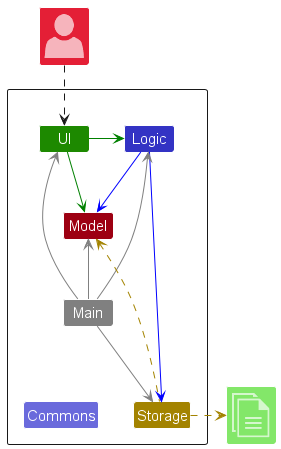
The Architecture Diagram given above explains the high-level design of the App.
Given below is a quick overview of main components and how they interact with each other.
Main components of the architecture
Main (consisting of classes Main and MainApp) is in charge of the app launch and shut down.
- At app launch, it initializes the other components in the correct sequence, and connects them up with each other.
- At shut down, it shuts down the other components and invokes cleanup methods where necessary.
The bulk of the app’s work is done by the following four components:
-
UI: The UI of the App. -
Logic: The command executor. -
Model: Holds the data of the App in memory. -
Storage: Reads data from, and writes data to, the hard disk.
Commons represents a collection of classes used by multiple other components.
How the architecture components interact with each other
The Sequence Diagram below shows how the components interact with each other for the scenario where the user issues the command deletepatient 1.
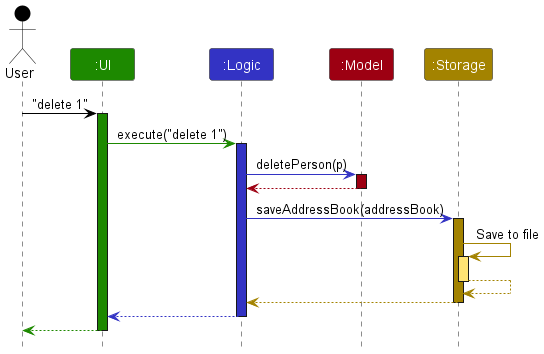
Each of the four main components (also shown in the diagram above),
- defines its API in an
interfacewith the same name as the Component. - implements its functionality using a concrete
{Component Name}Managerclass (which follows the corresponding APIinterfacementioned in the previous point).
For example, the Logic component defines its API in the Logic.java interface and implements its functionality using the LogicManager.java class which follows the Logic interface. Other components interact with a given component through its interface rather than the concrete class (reason: to prevent outside component’s being coupled to the implementation of a component), as illustrated in the (partial) class diagram below.
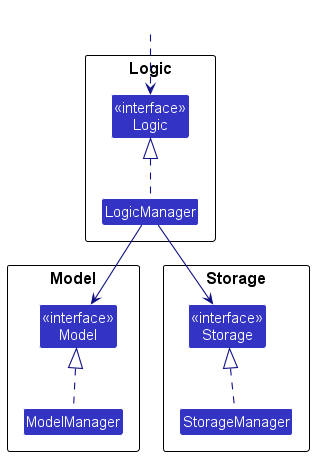
The sections below give more details of each component.
UI component
The API of this component is specified in Ui.java
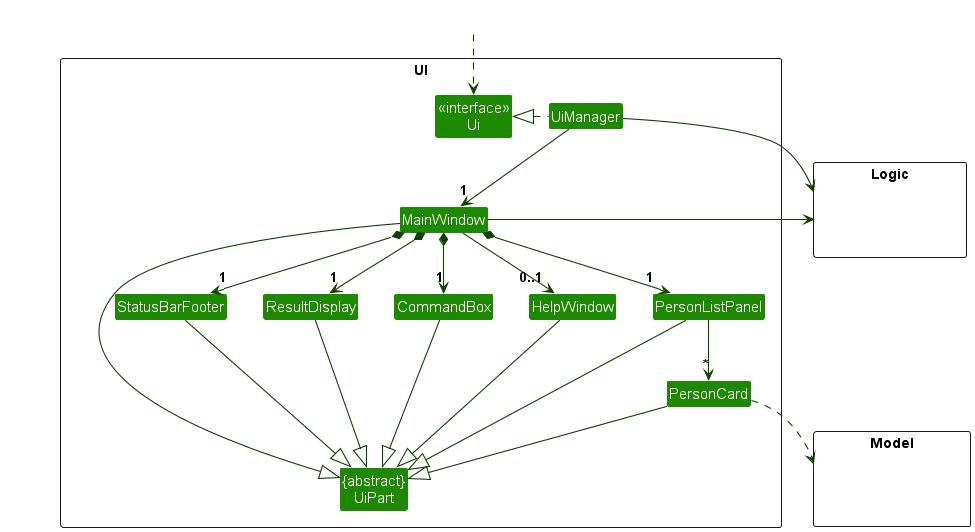
The UI consists of a MainWindow that is made up of parts e.g.CommandBox, ResultDisplay, PersonListPanel, StatusBarFooter etc. All these, including the MainWindow, inherit from the abstract UiPart class which captures the commonalities between classes that represent parts of the visible GUI.
The UI component uses the JavaFx UI framework. The layout of these UI parts are defined in matching .fxml files that are in the src/main/resources/view folder. For example, the layout of the MainWindow is specified in MainWindow.fxml
The UI component,
- executes user commands using the
Logiccomponent. - listens for changes to
Modeldata so that the UI can be updated with the modified data. - keeps a reference to the
Logiccomponent, because theUIrelies on theLogicto execute commands. - depends on some classes in the
Modelcomponent, as it displaysPersonobject residing in theModel.
Logic component
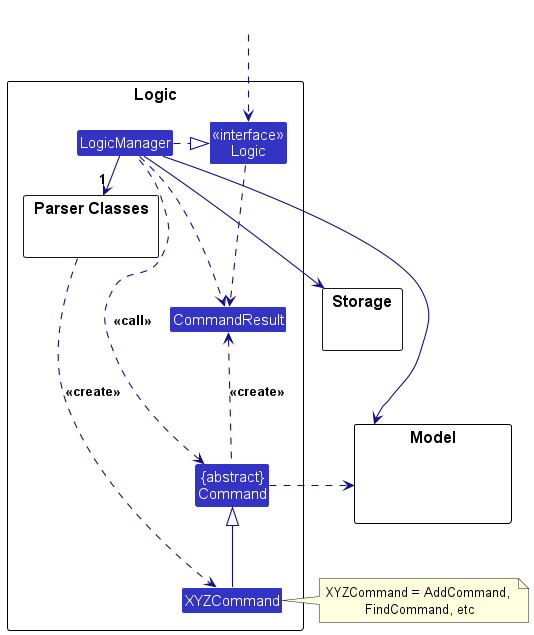
API : Logic.java
Here’s a (partial) class diagram of the Logic component:
The sequence diagram below illustrates the interactions within the Logic component, taking execute("deletepatient 1") API call as an example.
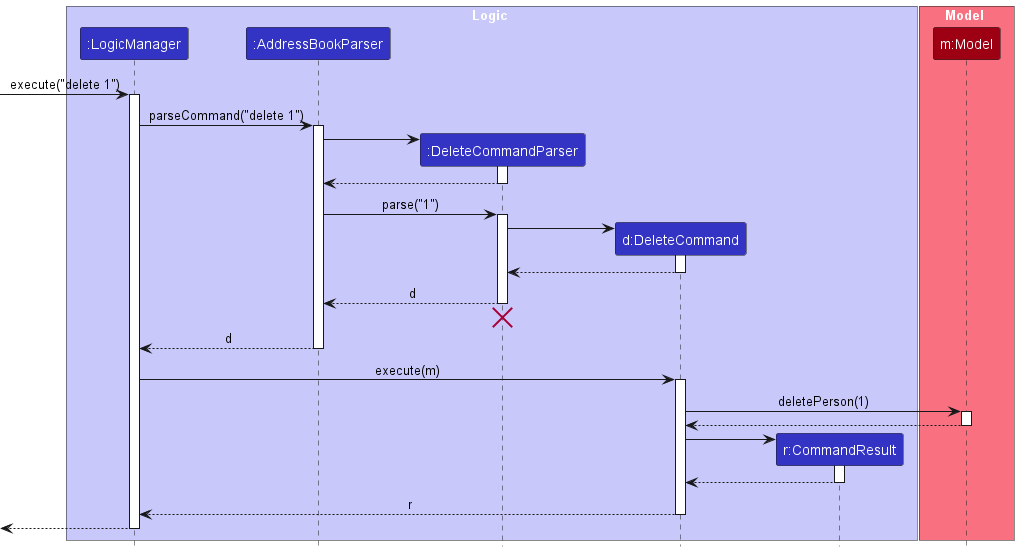
 Note: The lifeline for
 DeleteCommandParser should end at the destroy marker (X) but due to a limitation of PlantUML, the lifeline continues till the end of diagram.
How the Logic component works:
- When
Logicis called upon to execute a command, it is passed to anAddressBookParserobject which in turn creates a parser that matches the command (e.g.,DeleteCommandParser) and uses it to parse the command. - This results in a
Commandobject (more precisely, an object of one of its subclasses e.g.,DeletePatientCommand) which is executed by theLogicManager. - The command can communicate with the
Modelwhen it is executed (e.g. to delete a person).
Note that although this is shown as a single step in the diagram above (for simplicity), in the code it can take several interactions (between the command object and theModel) to achieve. - The result of the command execution is encapsulated as a
CommandResultobject which is returned back fromLogic.
Here are the other classes in Logic (omitted from the class diagram above) that are used for parsing a user command:
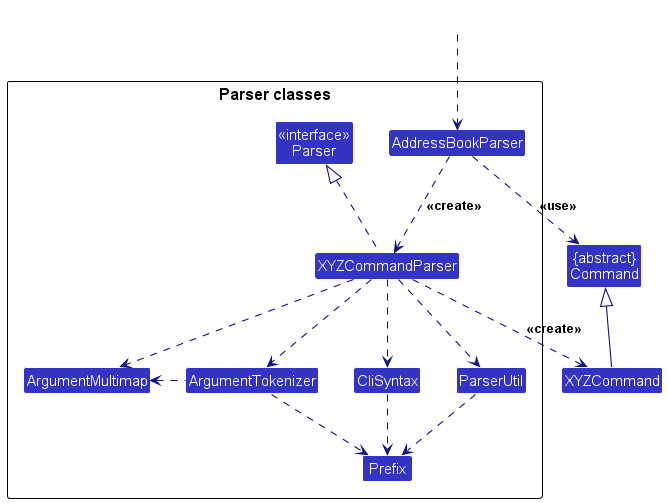
How the parsing works:
- When called upon to parse a user command, the
AddressBookParserclass creates anXYZCommandParser(XYZis a placeholder for the specific command name e.g.,AddCommandParser) which uses the other classes shown above to parse the user command and create aXYZCommandobject (e.g.,AddCommand) which theAddressBookParserreturns back as aCommandobject. - All
XYZCommandParserclasses (e.g.,AddCommandParser,DeleteCommandParser, …) inherit from theParserinterface so that they can be treated similarly where possible e.g, during testing.
Model component
API : Model.java
The Model component
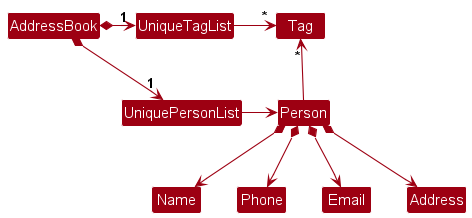
- stores the address book data i.e., all
Personobjects (which are contained in aUniquePersonListobject). - stores the currently ‘selected’
Personobjects (e.g., results of a search query) as a separate filtered list which is exposed to outsiders as an unmodifiableObservableList<Person>that can be ‘observed’ e.g. the UI can be bound to this list so that the UI automatically updates when the data in the list change. - stores a
UserPrefobject that represents the user’s preferences. This is exposed to the outside as aReadOnlyUserPrefobjects. - maintains a
VersionedAddressBookto support undo commands-
VersionAddressBookkeeps the currentAddressBookobserved by the UI - On each command that mutates the database,
Modelwill instructVersionedAddressBookto snapshot the current state before executing command soundo()can revert to previous version
-
- does not depend on any of the other three components (as the
Modelrepresents data entities of the domain, they should make sense on their own without depending on other components)
The Patient class
-
Patientextends fromPerson. -
Patientwould have additional fieldsNoteandAppointment. - A
Patientcan have any number ofNoteandAppointment. -
Patientcan have 0 or 1 number ofCaretaker.
The Caretaker class
-
Caretakerextends fromPerson. -
Caretakermust have 1Relationship.
Storage component
API : Storage.java
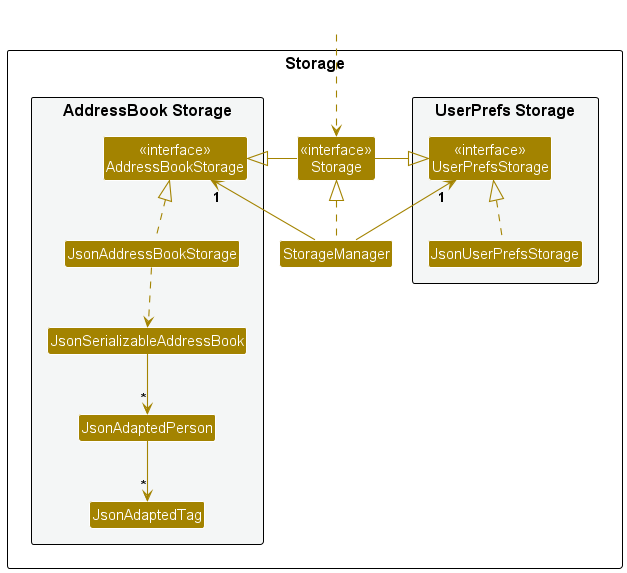
The Storage component,
- can save both address book data and user preference data in JSON format, and read them back into corresponding objects.
- inherits from both
AddressBookStorageandUserPrefStorage, which means it can be treated as either one (if only the functionality of only one is needed). - depends on some classes in the
Modelcomponent (because theStoragecomponent’s job is to save/retrieve objects that belong to theModel)
Common classes
Classes used by multiple components are in the seedu.address.commons package.
Implementation
This section describes some noteworthy details on how certain features are implemented.
Undo feature
Overview
The proposed undo mechanism is facilitated by VersionedAddressBook. It wraps AddressBook with an undo history, stored internally as an internal stack of past states historyLog
and a pointer to the current state current. It provides the following operations:
-
VersionedAddressBook#update()— Saves the current address book state into the history as a new snapshot. -
VersionedAddressBook#hasHistory()— Returnstrueif there is at least one previous snapshot ofAddressBookto restore. -
VersionedAddressBook#undo()— Restores the address book to a previous address book state from history -
VersionedAddressBook#getAddressBook()- Exposes liveAddressBookinstance that the UI is connected to
These operations are exposed in the Model interface
- Model operations that changes its content calls
VersionedAddressBook#update()to create a snapshot before applying the change - Model#canUndo() calls
VersionedAddressBook#hasHistory() - Model#undo() calls
VersionedAddressBook#undo()and passes the new filtered list to the UIPREDICATE_SHOW_ALL_PERSONSto refresh the UI list to show the list of patients in the latest snapshot ofAddressBook
When we snapshot
Only mutating operations lead to snapshots. The ModelManager methods that mutate the book call update(), then perform the change
- Mutating examples which captures snapshot:
patient,deletenote,editappt,clear,sortappt - Non-mutating examples that does not capture snapshot:
list,find,help
Example Usage and Behaviour
Step 1: Initial Launch
VersionedAddressBook will have the initial AddressBook state as its current property (i.e current points to
the newly initialised AddressBook
Step 2: User executes
deletepatient 5
Inside ModeManager.deletePerson():
-
update()snapshots the pre-delete state. - Deletes the 5th patient
- Filtered list refreshes
Step 3: User executes
patient n/David p/98765432 a/Blk 312 tag/high
Inside ModelManager.addPerson():
-
update()snapshots the pre-add state/ - Adds the new patient.
- Filtered list refreshes
New AddressBook snapshot is pushed to historyLog
Step 4: User executes
undo
-
UndoCommandcheckscanUndo() -
model.undo()-> movescurrentpointer left by one, restores snapshot withresetData(...) -
updateFilteredPersonList(PREDICATE_SHOW_ALL_PERSONS)clears any active filters, so full person UI is displayed
New AddressBook snapshot is pushed to historyLog
Step 5: User executes
list
historyLog and current pointer unchanged. List continues to show all patients.
Step 6: Behaviour summary
- Mutating commands (
patient,deletepatient,editpatient,clear,appt,note,sortappt) snapshot before changing data - Undo reverts one step, restore state of latest snapshot captured in
historyLog, and show all patients - Non-mutating commands (
list,find,help) does not affect content of historyLog.
Design considerations:
Aspect: How undo executes:
-
Alternative 1 (current choice): Whole-book snapshots in the model
- Pros:
- Consistent design, snapshot timing centralized in
ModelManager - Minimal coupling between commands and undo logic;
- Easier to test
- Consistent design, snapshot timing centralized in
- Cons:
- For sessions with large history of commands, can be more memory-intensive
- Pros:
-
Alternative 2: Command-specific inverse operations
- Pros:
- Lower memory (eg: deleted
Patientfordeletepatient), potentially faster performance sessions with large history of commands.
- Lower memory (eg: deleted
- Cons:
- Harder to implement, every mutating command require precise inverse behaviour upon redo
- Greater risk of encountering bugs across commands
- Harder to evolve as number of commands increase
- Pros:
Why we chose Alternative 1:
- It keeps our codebase easy to maintain as we add more mutating command. Every reversal follows a history log with minimal guesswork and edge cases, strengthening clarity and maintainability of system. We can introduce target optimisations, if memory scale becomes a concern later on.
Appointment feature
Overview
The appointment feature lets each Patient maintain a chronologically sorted list of upcoming visits. The workflow mirrors the undo/redo walkthrough above: start with a command issued at the CLI, flow through parsing, run model validations, and finally persist the state with undo support. Three commands participate:
-
apptcreates a new appointment for a patient. -
editapptupdates an existing appointment. -
deleteapptremoves an appointment.
Each command operates on the currently displayed list, reuses Command#ensureValidPatientIndex(...) for index safety, and surfaces results via Messages.shortFormat(...) so the UI stays consistent.
Example usage scenario
Step 1. The user runs appt 3 d/31-12-2025 t/13:00 note/Year-end review. AddressBookParser dispatches the command to AddAppointmentCommandParser, which validates the prefixes, parses the index, and builds the domain values (Index, String date/time, optional Note).
Step 2. AddAppointmentCommand#execute(...) retrieves patient 3 from the filtered list, instantiates a new Appointment, and delegates to ModelManager#addAppointment(...).
Step 3. The model performs duplicate checks, creates an updated immutable patient via Patient#addAppointment(...), and replaces the stored patient with Model#setPerson(...). VersionedAddressBook.update() snapshots the pre-change state so undo continues to work (the behaviour mirrors the undo/redo diagrams above).
Step 4. The command formats feedback (Appointment created: <formatted appointment>) using the freshly constructed appointment rather than relying on list ordering, then returns the CommandResult to the UI.
editappt and deleteappt follow the same lifecycle: parse input, locate the patient, validate the target appointment, produce an updated Patient instance, and persist it through the model. Undoing any of these commands restores the previous snapshot just like the undo walkthrough earlier.
Command implementation notes
-
AddressBookParsertokenises raw CLI input and dispatches to the relevantAppointmentCommandParser. Each parser enforces mandatory prefixes, rejects duplicates viaArgumentMultimap#verifyNoDuplicatePrefixesFor(...), and converts user input into domain objects withParserUtil. Parse-time failures throwParseException, surfacing format errors before model work begins. -
AddAppointmentCommandconstructs the appointment immediately, which ensures invalid dates/times fail fast and allows the same instance to be reused in the success message. -
EditAppointmentCommandextendsAbstractEditCommand. ItsEditAppointmentDescriptorrecords only the mutated fields and providesbuildUpdatedAppointment(...)to merge edits with the original appointment.validateEdit(...)performs type checks (patient vs. caretaker), verifies the appointment index is within valid bounds (1 to size of appointments list), and checks for duplicate date/time combinations before any model mutation. -
DeleteAppointmentCommandextendsAbstractDeleteCommand. After validation it copies the patient’s appointment list, removes the target entry, and delegates to the model to persist the updated patient.
Model updates and undo support
-
ModelManager#addAppointment(...)is the entry point for creation. It guards against non-Patienttargets, rebuilds the authoritativeAppointment, and prevents double booking by comparing date/time pairs. Successful additions callPatient#addAppointment(...), which returns a new immutable patient with a sorted appointment list, before handing control tosetPerson(...). - Editing and deletion follow the same pattern by constructing new
Patientinstances with the edited or trimmed appointment lists. Because every mutation first invokesVersionedAddressBook.update(), undo/redo can revert or replay these operations without bespoke logic. -
Patientencapsulates appointment storage. Its mutators (addAppointment,editAppointment) copy the underlying list, apply the change, and sort the result, ensuring consumers never observe partially updated state.
Validation and error handling
-
Appointmentperforms definitive validation: it parsesdd-MM-uuuuandHH:mmvalues using strictResolverStyle.STRICTmode toLocalDateTimeand rejects past timestamps viaMESSAGE_PAST_APPOINTMENT. The strict parsing ensures that invalid calendar dates (e.g., 31-02-2099) are rejected withMESSAGE_INVALID_DATE_TIME. Optional notes are wrapped inNote, inheriting the same length and character checks as patient notes. - Duplicate detection resides in the model layer rather than the parser so both CLI and future UI surfaces share the same safeguard. Attempts to schedule the same date/time for a patient trigger
MESSAGE_DUPLICATE_APPOINTMENT. - Editing supports note removal by treating empty
note/inputs asEditAppointmentDescriptor#clearNote(). The descriptor tracks this through thenoteClearedflag andisAnyFieldEdited()prevents no-op updates from reaching the model.
Testing guidance
-
AddAppointmentCommandTest,EditAppointmentCommandTest, andDeleteAppointmentCommandTestcover the command flows, including duplicate detection, invalid indices, and success messaging. - Parser-focused coverage in
AddAppointmentCommandParserTest,EditAppointmentCommandParserTest, andDeleteAppointmentCommandParserTestverifies prefix handling, optional note parsing, and error reporting for malformed indices. -
PatientTestandAppointmentTestverify list immutability, chronological ordering, and validation logic so downstream commands can rely on the documented invariants.
Design considerations
Aspect: Where to enforce appointment invariants
-
Alternative 1 (current choice): Validate in the model layer (
Appointment,ModelManager).- Pros: Guarantees consistency for all entry points (CLI, potential GUI).
- Cons: Commands need to surface validation errors up to the UI.
-
Alternative 2: Validate in individual commands and parsers.
- Pros: Simpler error messaging per command.
- Cons: Tight coupling, duplicated checks, and increased risk when introducing new entry points.
All PlantUML sources are located alongside other diagrams in docs/diagrams/ for future edits.
Documentation, logging, testing, configuration, dev-ops
Appendix: Requirements
Product scope
Target user profile:
- nurses who support patients outside of hospital settings
- juggle multiple patients, each with unique care needs
- rely on quick access to essential information
- can type fast
- prefers typing to mouse interactions
- is reasonably comfortable using CLI apps
Value proposition: manage patient records faster than a typical mouse/GUI driven app
User stories
Priorities: High (must have) - * * *, Medium (nice to have) - * *, Low (unlikely to have) - *
| Priority | As a … | I want to … | So that I can… |
|---|---|---|---|
* * * |
home-visiting nurse | view the records without needing internet | work at places with no cellular signal |
* * * |
new user | view all the commands of the MediSaveContact | onboarding in the application is easy |
* * * |
nurse | add a new patient with personal details | I can keep track of who I’m caring for |
* * * |
nurse | view a patient’s details quickly | I can recall important info during visits |
* * * |
nurse | delete a patient’s record | I can remove patients I no longer manage |
* * * |
nurse | list all patients | I can get an overview of my caseload |
* * * |
nurse | add medical notes to a patient | I can record observations and treatment history |
* * * |
nurse | add an appointment for a patient | I can remember when to visit them |
* * |
nurse | receive reminders for appointments | I won’t forget important visits |
* * |
nurse | filter patients by condition/notes | I can prioritize certain groups of patients |
* * |
nurse | undo my last action | I can recover from mistakes |
* |
new user | view detailed error message | I know if I am using the product wrongly and how to fix |
* |
nurse | update a patient’s details | I can keep information accurate |
* |
nurse | search for a patient by name | I can find records quickly |
* |
nurse | view upcoming appointments | I can plan my schedule efficiently |
* |
nurse | delete an appointment | I can manage changes in patient schedules |
* |
nurse | mark an appointment as completed | I can track which visits I’ve done |
* |
nurse | sort patients by name | I can find them more easily |
* |
nurse | add medication info to a patient | I can track prescriptions and dosages |
* |
nurse | view patients with ongoing medication | I can check who needs regular follow-ups |
* |
nurse | export patient records to a text file | I can back up my data |
* |
nurse | import patient records from a text file | I can restore data if needed |
* |
nurse | tag patients with labels (e.g., “diabetes”, “rehab”) | I can organise them by health needs |
* |
nurse | search patients by tag | I can quickly find patients with similar conditions |
Use cases
(For all use cases below, the System is the MediSaveContact and the Actor is the user, unless specified otherwise)
Use case 1: Delete a person
MSS
- User requests to list persons
- MediSaveContact shows a list of persons
- User requests to delete a specific person in the list
-
MediSaveContact deletes the person
Use case ends.
Extensions
-
2a. The list is empty.
Use case ends.
-
3a. The given index is invalid.
-
3a1. MediSaveContact shows an error message.
Use case resumes at step 2.
-
Use case 2: Add an appointment to a patient
MSS
- User requests to list persons
- MediSaveContact shows a list of persons
- User requests to update a specific person’s appointment
-
MediSaveContact updates the information
Use case ends.
Extensions
-
2a. The list is empty.
Use case ends.
-
3a. The given index is invalid.
-
3a1. MediSaveContact shows an error message.
Use case resumes at step 2.
-
-
3b. The given date is invalid.
-
3b1. MediSaveContact shows an error message.
Use case resumes at step 2.
-
-
3c. The appointment details duplicate an existing appointment for that patient.
-
3c1. MediSaveContact shows an error message (“This appointment already exists in the address book”).
Use case resumes at step 2.
-
Use case 3: Add a medical note to a patient
MSS
- User requests to list persons
- MediSaveContact shows a list of persons
- User requests to update a specific person’s medical note
-
MediSaveContact updates the information
Use case ends.
Extensions
-
2a. The list is empty.
Use case ends.
-
3a. The given index is invalid.
-
3a1. MediSaveContact shows an error message.
Use case resumes at step 2.
-
-
3b. The given note is empty.
-
3b1. MediSaveContact shows an error message.
Use case resumes at step 2.
-
-
3c. The given note is too long.
-
3c1. MediSaveContact shows an error message.
Use case resumes at step 2.
-
Non-Functional Requirements
Business
- Single nurse profile can support <= 5000 patients
- A nurse cannot create two appointments that overlap for the same patient
Constraints
- Release is one JAR <= 100 MB, runs via java -jar
- Features work 100% offline, no dependency on external servers
Performance
- Listing up to 1000 patients render first screen in <300 ms and filter/search updates re-render in <150 ms
- Prompt can be typed in <2.5s from java -jar
Quality
- User can perform commands without using a mouse
- Proper response to invalid commands (showing expected syntax, reason why commands are invalid, etc.)
Technical
- Should work on any mainstream OS as long as it has Java
17or above installed.Process
- Project to be conducted in Brownfield increments, by every week, a new release of the product is made available
Notes about project scope
- The product should maintain a single local profile, no access to the same data file by another user
Glossary
- Mainstream OS: Windows, Linux, Unix, macOS
- JAR: Java Archive – A package file format used to aggregate many Java class files, associated metadata, and resources into a single file for distribution
- GUI: Graphical User Interface – A form of user interface that allows users to interact with their devices through graphical icons and visual indicators
- Patient records: Information related to a patient (personal details, notes, appointments)
- Medical note: A string field with a maximum length of 200 characters, intended for storing patient specific notes such as diagnosis and medications
- Appointment: Patient’s next appointment. Stores a DateTime object, and cannot be set to the past
Appendix: Instructions for manual testing
Given below are instructions to test the app manually. They cover the core MediSaveContact features and a handful of negative scenarios. After completing these scripts, continue with exploratory testing to uncover edge cases specific to your environment.
Launch and shutdown
-
Initial launch
- Download the release JAR and place it in an empty folder (e.g.
~/medisavecontact-test). - Double-click (Windows) or run
java -jar medisavecontact.jar(Linux/macOS).
Expected: The GUI opens with sample patients loaded. Status bar shows the data file path.
- Download the release JAR and place it in an empty folder (e.g.
-
Saving window preferences
- Resize the window and drag it to a different monitor corner.
- Close the app using the window close button.
- Re-launch the app.
Expected: The remembered size and position are restored.
-
Exit command
- Enter
exit.
Expected: Application shuts down cleanly with no lingering Java processes.
- Enter
Managing patients
-
Adding a patient
- Ensure the list view shows the full patient list via
list. - Execute
patient n/Lim Siew Mei p/93334444 a/88 Redhill Lane tag/high.
Expected: Patient is appended to the list with the supplied details andtag/HIGH. Feedback panel confirms creation.
- Ensure the list view shows the full patient list via
-
Preventing duplicates
- Repeat the exact command above.
Expected: Error message “This patient already exists in MediSaveContact.”
- Repeat the exact command above.
-
Editing a patient
- Run
editpatient INDEX p/98887777 tag/medium, replacingINDEXwith the position of the patient added earlier.
Expected: Phone number and tag update; other details remain unchanged. - Run
editpatient INDEXwith no additional prefixes.
Expected: Error “At least one field to edit must be provided.”
- Run
-
Deleting and clearing
- Execute
deletepatient INDEXon the same patient.
Expected: Patient disappears from the list; success message shows the removed details. - Execute
deletepatient 0anddeletepatient 999.
Expected: Both fail with invalid index messages. - (Optional) Run
clearto wipe all data.
Expected: Patient list becomes empty. Restore data manually from a backup JSON file after this test.
- Execute
Managing caretakers
-
Assigning a caretaker
- With patients listed, pick one without a caretaker (or add a fresh patient).
- Execute
caretaker INDEX n/Lee Wei Jun p/90001234 a/Blk 22 Pasir Ris r/Brother.
Expected: Targeted Patient card displays a caretaker section with the supplied details.
-
Validation
- Run
caretaker INDEX ...on the same patient again.
Expected: Error stating the patient already has a caretaker. - Run
caretaker INDEX n/ p/98329821 a/Yishun Ave 5 Block 105 #05-2046 r/Fatherwith a blank name, on a patient without a caretaker.
Expected: Validation error referencing the name constraint.
- Run
-
Editing and removing caretaker
- Execute
editcaretaker INDEX p/98889999.
Expected: Caretaker phone updates in the UI and success message. - Execute
deletecaretaker INDEX.
Expected: Caretaker section disappears. Running the command again should return an error indicating no caretaker exists.
- Execute
Managing notes
-
Adding a note
- Run
note INDEX note/Patient responded well to medication.
Expected: Note appears under the patient with a green success message.
- Run
-
Character limit enforcement
- Attempt
note INDEX note/followed by 250 characters.
Expected: Error “Note exceeds maximum length of 200 characters.” - Execute
note INDEX note/(whitespace only).
Expected: Error about blank notes.
- Attempt
-
Editing and deleting notes
- Run
editnote INDEX i/ITEM_INDEX note/Stable vitals recorded.
Expected: Note content updates in place. - Run
deletenote INDEX i/ITEM_INDEX.
Expected: Note disappears; repeated deletion of the sameITEM_INDEXfails gracefully.
- Run
Managing appointments
-
Adding an appointment
- Prepare a patient (INDEX) and run
appt INDEX d/01-12-2025 t/14:30 note/Follow-up blood test.
Expected: Appointment list for the patient shows the new entry. Feedback confirms addition.
- Prepare a patient (INDEX) and run
-
Rejecting invalid dates/times
- Run
appt INDEX d/01-01-2020 t/09:00(past date).
Expected: Error describing date/time constraint. - Run
appt INDEX d/40-13-2025 t/25:61.
Expected: Parsing error for invalid date/time.
- Run
-
Editing and deleting appointments
- Add a second appointment, then run
editappt INDEX i/ITEM_INDEX t/16:00 note/Updated timing.
Expected: Specified appointment updates the time and note. - Execute
deleteappt INDEX i/ITEM_INDEXon the updated appointment.
Expected: Appointment is removed. Trying to delete the same index again should fail if there are no more.
- Add a second appointment, then run
Searching and filtering
- Execute
find tanafter the sample data is restored.
Expected: Only patients whose names contain “tan” (case-insensitive) remain in the list, with indices renumbered. - Run
list.
Expected: Full patient list is restored. - Combine with other commands: run
find high, then trydeletepatient 1.
Expected: Deletes the first patient in the filtered view; confirm vialistthat the correct patient was removed.
Data persistence and autosave
- Add a unique patient and caretaker as above.
- Close the app using
exit. - Reopen MediSaveContact.
Expected: The newly added patient and caretaker are still present, demonstrating autosave. - Navigate to
data/medisavecontact.jsonand confirm the new patient entry exists in the JSON.
Handling invalid commands
- Enter a random string such as
foobar.
Expected: Error “Unknown command” with a hint to usehelp. - Enter a valid command with missing prefixes, e.g.
patient John.
Expected: Error message showing the correct usage format. - Enter extra prefixes for commands that should ignore them, e.g.
clear 123.
Expected: Command succeeds and extraneous tokens are ignored.
Recovering from corrupted storage files
- Close the app. Open
data/medisavecontact.jsonin a text editor. - Remove a closing brace or truncate the file intentionally.
- Relaunch MediSaveContact.
Expected: Application starts with an empty data set and warns about the corrupted file. - Close the app, restore the JSON from a backup (or delete it to let the app regenerate sample data), then relaunch.
Expected: Normal startup with data restored.
Resetting between test runs
- To return to the default sample data, delete
data/medisavecontact.jsonbefore launching the application. - Alternatively, keep a copy of a known-good JSON file and overwrite the data directory after each scenario.
| view patients with ongoing medication | I can check who needs regular follow-ups |
|
*| nurse | export patient records to a text file | I can back up my data | |*| nurse | import patient records from a text file | I can restore data if needed | |*| nurse | tag patients with labels (e.g., “diabetes”, “rehab”) | I can organise them by health needs | |*| nurse | search patients by tag | I can quickly find patients with similar conditions |